GPT Image 2 to HappyHorse: A Practical Image-to-Video Workflow
Use GPT Image 2 to create strong first frames and references, then turn them into HappyHorse videos with a practical image-to-video workflow.
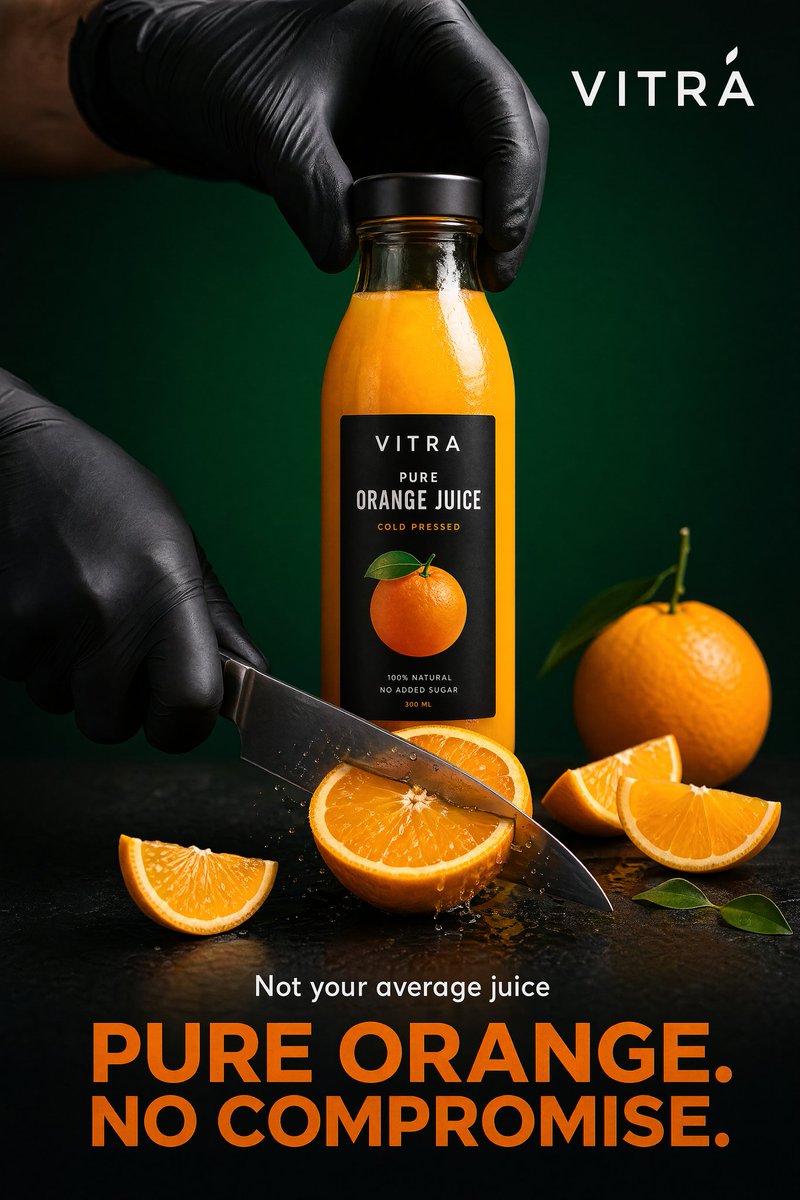
The strongest HappyHorse workflow often starts before you open a video model.
HappyHorse-1.0 is getting attention because it is ranking at the top of the public AI video leaderboards. But a strong video model still needs a strong visual starting point. If the first frame is vague, the product shape is wrong, the character design drifts, or the campaign composition is weak, motion will not fix the concept. It will only animate the problem.
That is where GPT Image 2 to HappyHorse becomes the useful workflow: use GPT Image 2 to design the still image, then use HappyHorse to turn that approved frame into a short video.
This guide is not a generic model comparison. GPT Image 2 and HappyHorse solve different parts of the creative job. GPT Image 2 is the image planning and first-frame step. HappyHorse is the motion step. Used together, they give creators a cleaner path from idea to video than starting with text-to-video alone.
Quick answer
Use GPT Image 2 first when the video depends on a precise visual foundation:
- a product launch shot
- a character or mascot
- a brand campaign frame
- an ecommerce product scene
- a social ad hook
- a UI or app demo image
- a storyboard keyframe
Then move the approved image into Happy Horse 1.0 and prompt the motion, camera movement, duration, aspect ratio, and output quality.
The practical sequence is:
- Write the creative brief.
- Generate the key still with GPT Image 2.
- Fix product, character, layout, and copy issues while the asset is still an image.
- Use that image as the first frame or reference for HappyHorse.
- Prompt the motion in short, controlled shot language.
- Generate two or three video variants, then choose the one with the best motion and continuity.
Why HappyHorse is trending now
HappyHorse is not just another video-model name circulating on social feeds.
As of April 28, 2026, the live Artificial Analysis Text to Video leaderboard shows HappyHorse-1.0 ranked first in the no-audio text-to-video category, with a visible Elo score of 1,366. The live Image to Video leaderboard also shows HappyHorse-1.0 ranked first in the no-audio image-to-video category, with a visible Elo score of 1,402.
Those scores can move as more votes are collected, so treat them as a current leaderboard snapshot, not a permanent fact.
The availability story also changed recently. On April 27, 2026, fal announced developer and enterprise API access to HappyHorse-1.0, including image-to-video, reference-to-video, text-to-video, and video-edit endpoints. That matters because the discussion has moved from "interesting mystery model" to "video model that builders can actually try through API partners."
For a GPTIMG2 AI user, the most important part is the image-to-video angle. If HappyHorse is strong at animating visual inputs, then the quality of the still image you feed it becomes more important.
Why not start with text-to-video directly?
Text-to-video is useful when the idea is loose and the result can vary. It is less reliable when the video must preserve a specific subject.
For example, a product ad cannot casually change the bottle shape. A character clip cannot turn a blue jacket into a green one halfway through. A landing-page video cannot animate a UI concept that was never visually resolved. A brand campaign cannot tolerate random typography, inconsistent props, or the wrong visual mood.
Starting with GPT Image 2 gives you a checkpoint before the expensive motion step.
Use GPT Image 2 to lock:
- subject identity
- product shape and label placement
- character appearance
- composition and crop
- lighting direction
- color palette
- campaign typography
- visual hierarchy
- first-frame hook
Once the still image is right, HappyHorse has a clearer target to animate.
A strong GPT Image 2 still gives the video model a clearer subject, composition, and product story before motion is added.
The GPT Image 2 to HappyHorse workflow
Think of this as a small production pipeline, not one mega prompt.
1. Define the final video job
Before generating anything, decide what the video needs to do.
Good briefs are specific:
- "5-second vertical product teaser for a sparkling orange drink"
- "wide landing-page hero video for a SaaS analytics dashboard"
- "short creator ad showing a skincare bottle on a bathroom counter"
- "character intro clip for a recurring mascot"
- "ecommerce motion loop for a product detail page"
Bad briefs are only aesthetic:
- "make it cinematic"
- "make it viral"
- "make it cool"
- "make a realistic video"
HappyHorse can animate many visual ideas, but the workflow improves when the intended channel is clear from the start.
2. Generate the still image in GPT Image 2
Open the GPT Image 2 workspace and create the image that should become the first frame or main reference.
Use this prompt pattern:
Create a [format] still image for [campaign or use case].
The subject is [specific product, character, object, or scene].
The final video will be [duration, channel, and motion goal].
Design the frame so it works as the first frame of an AI video.
Preserve clear subject identity, strong composition, realistic lighting, and enough space for motion.
Do not add extra products, random text, distorted logos, or background clutter.
For a product teaser, that becomes:
Create a vertical 9:16 first-frame image for a 5-second product teaser.
The subject is a premium orange juice bottle on a chilled studio surface with condensation.
The final video will show a slow camera push-in, soft citrus slices moving in the background, and bright morning light.
Make the bottle shape, label area, cap, and glass texture clear.
Leave space around the bottle for subtle motion.
Do not add discount badges, extra bottles, unreadable text, hands, or unrelated props.
Do not move to video until the still image already works as a standalone frame.
3. Review the still before animating
This is the step most creators skip.
Check the image for:
- Is the subject immediately recognizable?
- Is the crop right for the final channel?
- Are product labels, UI elements, or typography acceptable?
- Does the image leave room for motion?
- Is the lighting direction consistent?
- Would the first second stop the viewer?
- Are there distracting props that could move strangely?
If the still fails, fix it in GPT Image 2 first. Video generation should not be used as a repair tool for a weak image.
4. Move the image into HappyHorse
Once the still is ready, open Happy Horse 1.0. Use the still as the image input or first-frame reference, then write the video prompt around motion.
The video prompt should not repeat every image detail. The still already carries the visual design. The HappyHorse prompt should focus on what changes over time.
Use this structure:
Animate the uploaded first frame into a [duration] video.
Keep the subject identity, composition, product shape, color palette, and lighting consistent.
Motion: [camera movement, subject movement, background movement].
Pace: [slow, medium, energetic, smooth].
Style: [realistic product video, cinematic social ad, clean landing-page loop].
Avoid: [warping, extra objects, text changes, face drift, logo changes].
For the orange juice example:
Animate the uploaded first frame into a 5-second vertical product teaser.
Keep the bottle shape, label area, cap, orange color, condensation, and studio lighting consistent.
Use a slow dolly push-in toward the bottle.
Add subtle movement in the background: soft citrus slices drifting slightly and gentle light shimmer on the glass.
Keep the motion premium, clean, and realistic.
Avoid extra bottles, label changes, distorted text, sudden camera jumps, or liquid spilling.
5. Choose settings based on the channel
HappyHorse on GPTIMG2 AI supports short-form video settings such as 3 to 15 second durations, 720p or 1080p output, and common aspect ratios including 16:9, 9:16, 1:1, 4:3, and 3:4.
Use:
| Channel | Suggested setup | Why |
|---|---|---|
| TikTok, Reels, Shorts | 9:16, 5 to 8 seconds | Fast hook, vertical composition, strong first frame |
| Landing-page hero | 16:9, 5 to 10 seconds | Wider scene, room for copy, clean loop potential |
| Product detail page | 1:1 or 4:3, 4 to 6 seconds | Works inside ecommerce modules and gallery slots |
| Paid social variant | 4:5 or 9:16, 3 to 6 seconds | Designed for quick testing and scroll behavior |
| Storyboard validation | any target ratio, 3 to 5 seconds | Focus on motion idea before final polish |
Do not default to the longest duration. Shorter clips are easier to control, faster to review, and often better for social hooks.
Prompt recipes for common use cases
Product launch teaser
Use GPT Image 2 to create a polished product still, then ask HappyHorse for controlled camera movement.
Animate the uploaded product still into a 6-second 9:16 launch teaser.
Keep the product shape, label area, color, lighting, and background style consistent.
Start with a calm frame, then use a slow push-in while the background highlights gently move.
Add subtle reflections and premium studio energy.
Avoid changing the package, adding extra products, creating unreadable label text, or making the camera shake.
Best for: ecommerce products, beverages, beauty, packaging, consumer apps, and landing-page teasers.
Character or mascot intro
Use GPT Image 2 to settle the character design first. Then use HappyHorse for a controlled gesture, not a full chaotic scene.
Animate the uploaded character image into a 5-second intro clip.
Preserve the character face, outfit, colors, proportions, and pose language.
The character turns slightly toward the camera, smiles, and gives a small confident wave.
Use smooth motion, stable framing, and consistent lighting.
Avoid changing clothing colors, face shape, hair style, or adding new characters.
Best for: brand mascots, creator avatars, recurring characters, and campaign hooks.
SaaS landing-page hero loop
Use GPT Image 2 to design the dashboard or app concept. Then keep HappyHorse motion subtle.
Animate the uploaded SaaS interface hero image into a 6-second 16:9 landing-page loop.
Keep the UI layout, typography blocks, panel structure, and color system stable.
Add subtle animated highlights across charts and cards, with a slow parallax camera movement.
Keep the video clean, professional, and loop-friendly.
Avoid changing the UI text, adding random panels, zooming too fast, or making the dashboard unreadable.
Best for: product pages, feature launches, app demos, and investor or sales visuals.
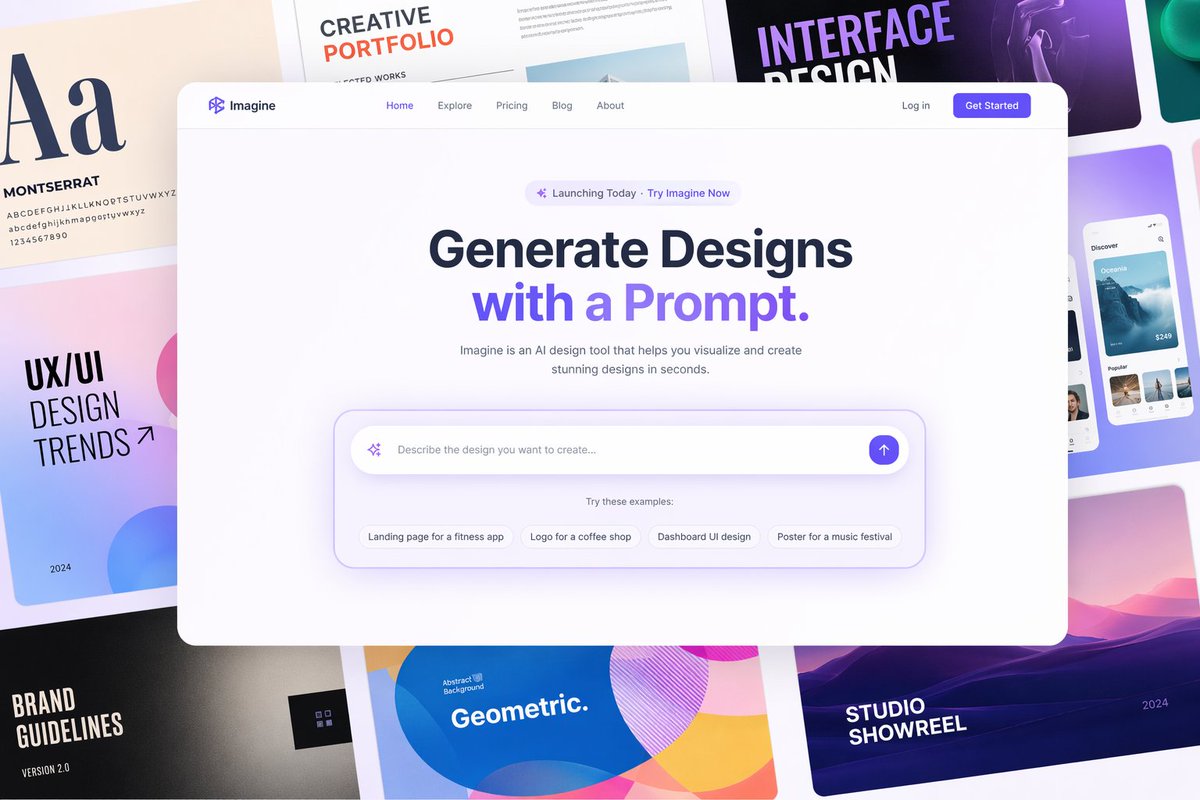
For UI and landing-page videos, use GPT Image 2 to resolve the layout first, then ask HappyHorse for subtle motion instead of redesigning the screen.
When this workflow works best
The GPT Image 2 to HappyHorse workflow is strongest when image quality matters before motion quality.
Use it for:
- product videos where the product must stay recognizable
- social ad hooks where the first frame carries the click
- brand campaigns where color, mood, and composition matter
- ecommerce scenes where product detail should not drift
- character clips where identity must stay stable
- landing-page hero loops where UI structure must remain readable
- concept videos where stakeholders need to approve the visual direction first
It is less useful when the whole point is spontaneous motion discovery. If you only want to explore random scenes, text-to-video can be faster. If you need a precise asset, start with image control.
Common mistakes
Mistake 1: Asking HappyHorse to invent everything
Text-to-video can generate impressive surprises, but surprises are risky when the video has to carry a product, brand, or character. Use GPT Image 2 to remove ambiguity before animation.
Mistake 2: Making the first frame too crowded
A beautiful still is not always a good video input. Leave room for motion. Avoid tiny objects, overloaded backgrounds, and too much text.
Mistake 3: Prompting the video like a still image
Once you are in HappyHorse, write about time: camera movement, subject motion, pacing, transition, and what should remain stable.
Mistake 4: Using too much duration too early
Start short. A 5-second clip is easier to judge than a 15-second clip. Expand only after the motion direction is working.
Mistake 5: Ignoring the final channel
A 16:9 hero video and a 9:16 social ad are different jobs. Decide the channel before generating the still image, not after.
Where GPTIMG2 AI fits
GPTIMG2 AI gives you both sides of the workflow:
- Use the GPT Image 2 workspace when you need to create the first frame or reference image.
- Use the GPT Image 2 prompt library when you want structured image prompts before starting.
- Use Happy Horse 1.0 when the still image is ready to become a video.
That sequence keeps each model in its strongest role. GPT Image 2 handles the visual decision. HappyHorse handles the motion decision.
Final takeaway
HappyHorse is worth watching because its current leaderboard position makes it one of the most visible AI video models of the moment. But the more practical question is not whether HappyHorse is "better" than an image model. It is how to feed it better inputs.
For many creator and marketing workflows, the answer is simple:
Use GPT Image 2 to make the frame worth animating. Then use HappyHorse to animate it.
That gives you a cleaner image-to-video process, fewer visual surprises, and a stronger path from prompt idea to usable short-form video.
FAQ
Is HappyHorse better than GPT Image 2?
They are different tools. GPT Image 2 is for image generation and editing. HappyHorse is for AI video generation. The useful workflow is to use GPT Image 2 for the still image or reference, then use HappyHorse for motion.
Should I use text-to-video or image-to-video with HappyHorse?
Use text-to-video for loose exploration. Use image-to-video when the subject, product, character, layout, or first frame needs to stay controlled.
Can GPT Image 2 create the first frame for HappyHorse?
Yes. GPT Image 2 is a strong fit for creating the visual starting point: product stills, campaign frames, character designs, UI concepts, and other references that HappyHorse can animate.
What aspect ratio should I choose?
Choose the ratio based on the final channel. Use 9:16 for short-form social video, 16:9 for landing-page or YouTube-style clips, and 1:1 or 4:3 for product gallery and ecommerce modules.
What is the biggest risk in this workflow?
The biggest risk is treating video generation as a fix for an unresolved image. If the still has wrong product details, weak composition, or unclear subject identity, animate later. Fix the image first.