1
Start with the deliverable
Name the asset first: product photo, ad, poster, UI mockup, thumbnail, packaging concept, infographic, or reference-based edit.
Open a GPT Image workspace with GPT Image 2 selected, add reference images when accuracy matters, and move from prompt to usable asset in one focused flow.

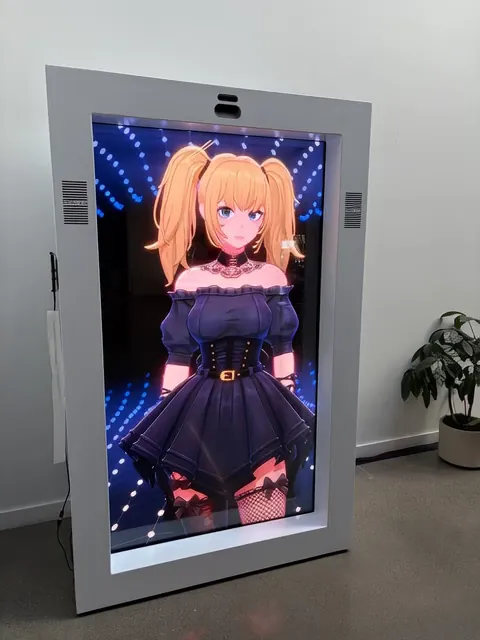
Use GPT Image to generate and edit images from prompts, references, aspect ratios, and quality settings. This page is built for people who want a working generator first.
Use GPT Image to generate and edit images from prompts, references, aspect ratios, and quality settings. This page is built for people who want a working generator first.
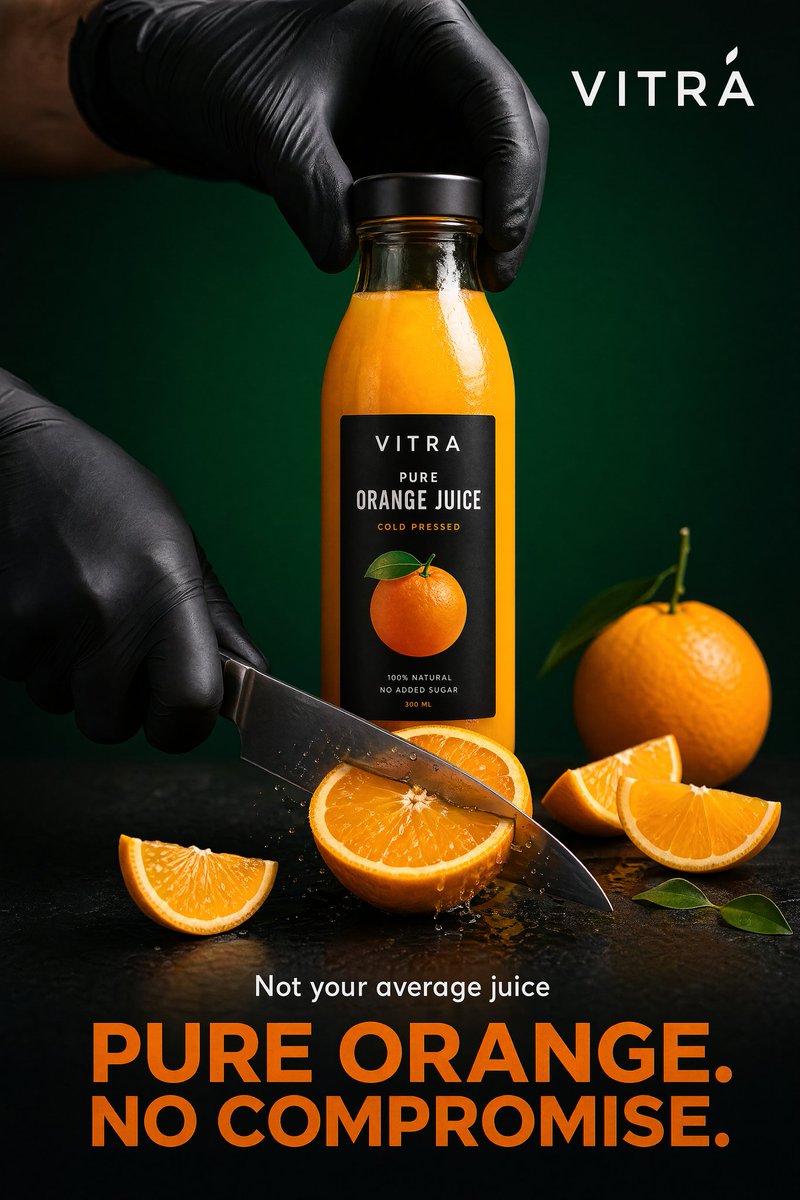
Searchers usually want to make an image now, compare GPT Image options, or understand whether GPT Image 2 can handle text-heavy and reference-led visuals.
The first screen opens the image workspace, so users can type a prompt, select GPT Image 2, and continue to the app without reading a long explainer first.
Keep the path practical: define the image job, anchor important details with references, then check the result against the channel where it will be used.
Name the asset first: product photo, ad, poster, UI mockup, thumbnail, packaging concept, infographic, or reference-based edit.
Upload a reference when the output should preserve a product shape, person, layout, color system, or approved creative direction.
Review text readability, composition, subject accuracy, and consistency before exporting or using the image as the base for another campaign asset.
These examples cover the commercial and creative jobs behind the keyword instead of repeating generic AI image claims.
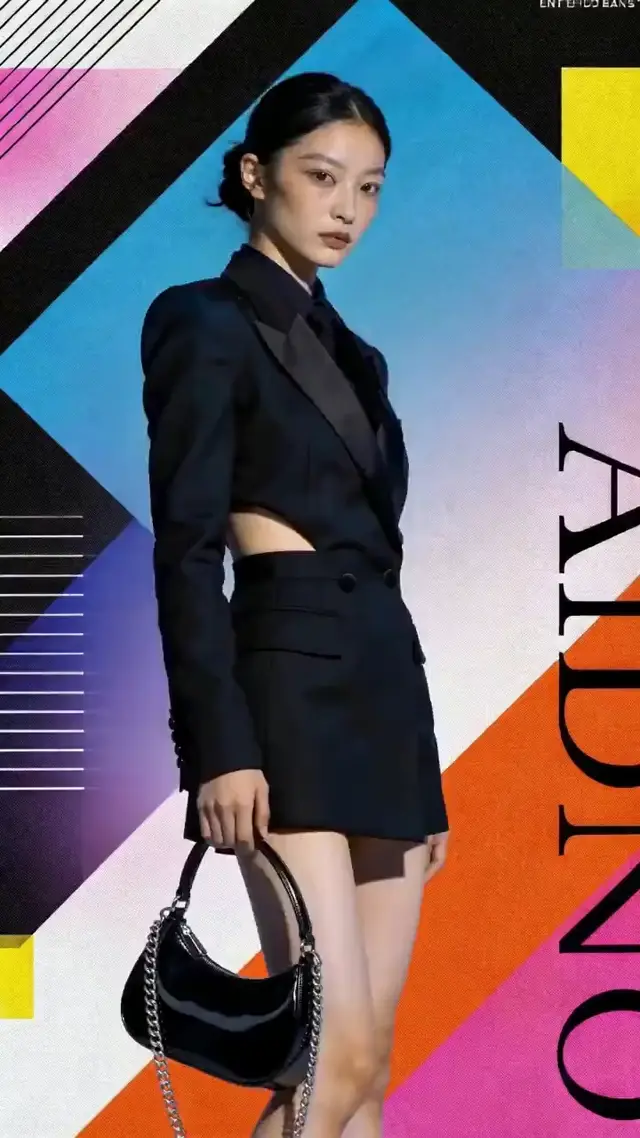
Create hero shots, lifestyle variants, packaging mockups, comparison frames, and listing imagery that can be reviewed against real channel needs.
Generate strong first directions for launches, YouTube thumbnails, event posters, carousels, and paid ad tests.
Use GPT Image 2 when the output needs labels, headlines, menu copy, pricing, UI text, or infographic-style structure.
Create app screens, SaaS hero sections, dashboard concepts, and social previews with cleaner hierarchy and interface copy.
Preserve an approved product, character, frame, or visual direction while changing background, props, text, lighting, or aspect ratio.
When the brief is still vague, start from reusable GPT Image 2 prompt examples and bring the strongest structure back into the generator.
Open the image workspace, write a concrete prompt, add references when precision matters, and turn the best result into a reusable creative direction.
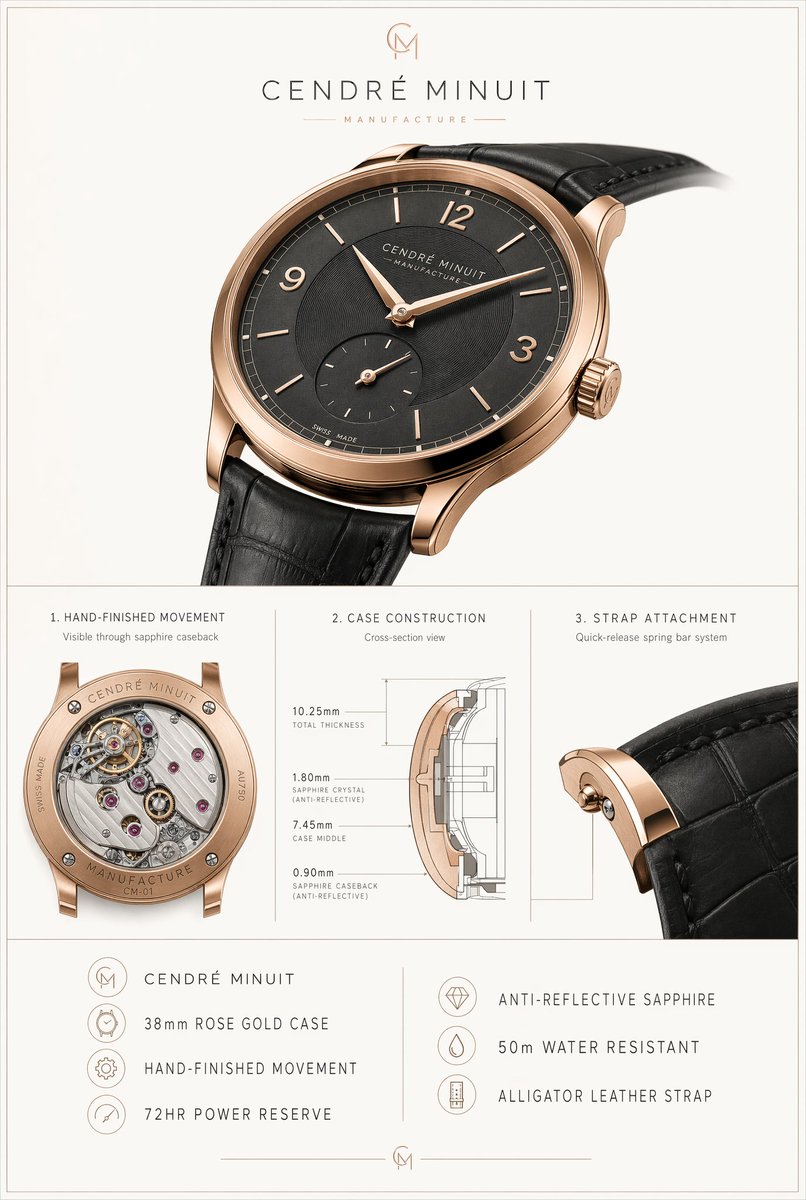
Answers the core generator intent: what this page is, how GPT Image 2 fits, whether references work, and where to go next.
The value is speed plus control: start with a concrete image job, generate a usable direction, then refine the details that decide whether the asset can ship.
“
The useful part is having the generator and prompt structure in the same path. We can move from idea to a reviewable image faster.
“
For product visuals, the reference-image flow matters. It keeps the product grounded while we test new scenes and layouts.
“
The page answers the generator intent first, then points us to prompts when we need better starting ideas.
Browse the four practical paths in GPTIMG2 AI: AI image models, AI video models, AI image generators, and AI video generators.
5 Items
7 Items
1 Items