2026/04/24

How to Edit Images with GPT Image 2 on GPTIMG2 AI

Learn how to edit images with GPT Image 2 on GPTIMG2 AI using reference uploads, prompt constraints, aspect ratios, quality settings, and revision workflows.

Editing with GPT Image 2 is most useful when you already have something worth preserving. A product photo, a portrait, a poster draft, a UI mockup, or a campaign visual may only need a better background, cleaner text, a new format, or a more polished composition. Starting over from a blank text prompt is often slower than giving the model the image and telling it exactly what should change.

That is the practical difference between using GPT Image 2 as a generator and using it as an editor. The model is now officially documented by OpenAI as supporting both generation and editing, with text and image input and image output. For editing tasks, the core workflow is straightforward: upload one or more reference images, describe the change in natural language, and let GPT Image 2 rebuild the result without manual masks or layers.

On GPTIMG2 AI, the best workflow is simpler: open the app with GPT Image 2 selected, upload the images you want the model to respect, write the edit as a production instruction, choose the right format, and revise from the closest useful result.

Quick answer

Use the GPTIMG2 AI app when you want to edit an existing image with GPT Image 2.

The shortest workflow is:

  1. Open the app with GPT Image 2 selected.
  2. Upload the reference image or images.
  3. Write a prompt that separates what to preserve from what to change.
  4. Pick the aspect ratio before generating.
  5. Choose quality based on whether this is a draft or final asset.
  6. Generate, review the closest good result, then revise one issue at a time.

If you do not yet have a strong prompt structure, start from the GPT Image 2 prompts page, copy the closest pattern, then move into the app.

When editing is better than generating from scratch

Text-to-image generation is good when the direction is still open. Editing is better when part of the image already matters.

Use GPT Image 2 editing when you need to:

  • keep a product shape while changing the background
  • preserve a person, pose, outfit, or identity marker
  • turn one campaign visual into several seasonal or regional variants
  • move an object into a new environment
  • restyle a poster without losing the main layout
  • adjust a UI-style image while keeping the screen structure readable
  • build a product scene from multiple reference images

Do not use editing just because you have an image nearby. If the source image is weak, poorly framed, or unrelated to the final goal, a clean text-to-image prompt may be faster.

The rule is simple: use reference images when identity matters. Use prompt-only generation when exploration matters.

Start in the GPTIMG2 AI app

The direct route is the GPT Image 2 workspace. That path opens the app with the image workflow and GPT Image 2 selected.

Inside the current GPTIMG2 AI workspace, GPT Image 2 is configured for:

  • reference-image uploads
  • up to 16 image references
  • auto, square, portrait, landscape, tall, wide, and ultrawide aspect ratios
  • low, medium, and high quality choices
  • 1k, 2k, and 4k output quality options

That matters because editing is usually not one prompt and done. You often need to test a direction quickly, then raise quality when the composition is right.

Write the edit prompt around preservation

Most weak edit prompts only say what to add.

Bad:

Make this product photo look more premium.

Better:

Edit the uploaded product photo into a premium skincare campaign visual.
Keep the bottle shape, label placement, cap color, and logo readable.
Replace the background with a dark stone bathroom counter, soft side lighting, light water droplets, and a realistic luxury editorial style.
Do not change the product proportions, do not add extra bottles, and do not invent new label text.

The second prompt works because it has three layers:

  • preserve: what must stay recognizable
  • change: what should be rebuilt
  • forbid: what would make the result unusable

For editing, the preservation layer is not optional. If you do not tell the model what matters, it may improve the image in a way that breaks the real job.

Use multiple references only when each one has a job

GPT Image 2 can work with image input, and GPTIMG2 AI exposes multiple reference-image slots for GPT Image 2. That does not mean every edit should use many references.

A good multi-reference setup gives each image a clear role:

  • reference 1: the product or subject to preserve
  • reference 2: the environment or mood to borrow
  • reference 3: the layout, pose, or composition target
  • reference 4: brand texture, packaging, or color direction

Example:

Use reference image 1 as the exact product.
Use reference image 2 only for the warm kitchen environment and morning light.
Create a realistic lifestyle product photo with the product from reference 1 placed on the countertop.
Keep the logo and bottle silhouette from reference 1 unchanged.
Do not copy unrelated objects from reference 2.

This is better than saying "combine these images" because it removes ambiguity. The model knows which image owns the subject and which image owns the atmosphere.

Choose aspect ratio before you judge the result

Many edit failures are actually format failures. A square product crop, a vertical ad, and a wide hero banner are different compositions.

On GPTIMG2 AI, use:

  • 1:1 for product thumbnails, marketplace previews, and simple social posts
  • 4:5, 3:4, 2:3, or 9:16 for mobile-first ads and story formats
  • 3:2, 4:3, or 16:9 for editorial images, landing-page sections, and horizontal campaign assets
  • 21:9, 2:1, or 3:1 when you need a wide hero with whitespace for copy
  • auto for early exploration when you want GPT Image 2 to infer the frame

If the subject keeps landing in the wrong place, do not keep rewriting the whole prompt. Fix the frame first, then revise the edit instruction.

Pick quality based on the stage of work

GPT Image 2 is powerful, but final-quality edits can take more time and cost more than quick drafts. OpenAI's image generation guide also notes that complex image prompts can have meaningful latency, and edit requests with image inputs need to account for image input processing.

For practical work on GPTIMG2 AI:

  • use low for early layout tests
  • use medium for normal iteration
  • use high when the composition is already right and you are preparing a final asset
  • use 1k when speed matters
  • use 2k or 4k only when the output needs more detail

Do not start every edit at the highest setting. First solve the structure, then pay for polish.

A repeatable GPT Image 2 editing workflow

Here is the workflow we recommend for most users on this site.

  1. Start with the clearest source image you have.
  2. Open the GPT Image 2 app workspace.
  3. Upload the source image and any useful secondary references.
  4. Write the prompt in this order: preserve, change, constraints, target use.
  5. Choose the final placement format before generating.
  6. Generate at draft or medium quality first.
  7. Compare the result against the real goal, not against the prompt alone.
  8. Revise one problem at a time.
  9. Move to higher quality only after the layout, subject, and text are acceptable.
  10. Download when the image is useful in its final placement.

This workflow is slower than writing "make it better," but it wastes fewer generations.

Prompt library examples worth borrowing

The GPT Image 2 prompts page already includes examples that map well to editing workflows. These are not before-and-after tests, but they show the kinds of reference-aware instructions that are useful when you want GPT Image 2 to preserve structure while changing style, format, or context.

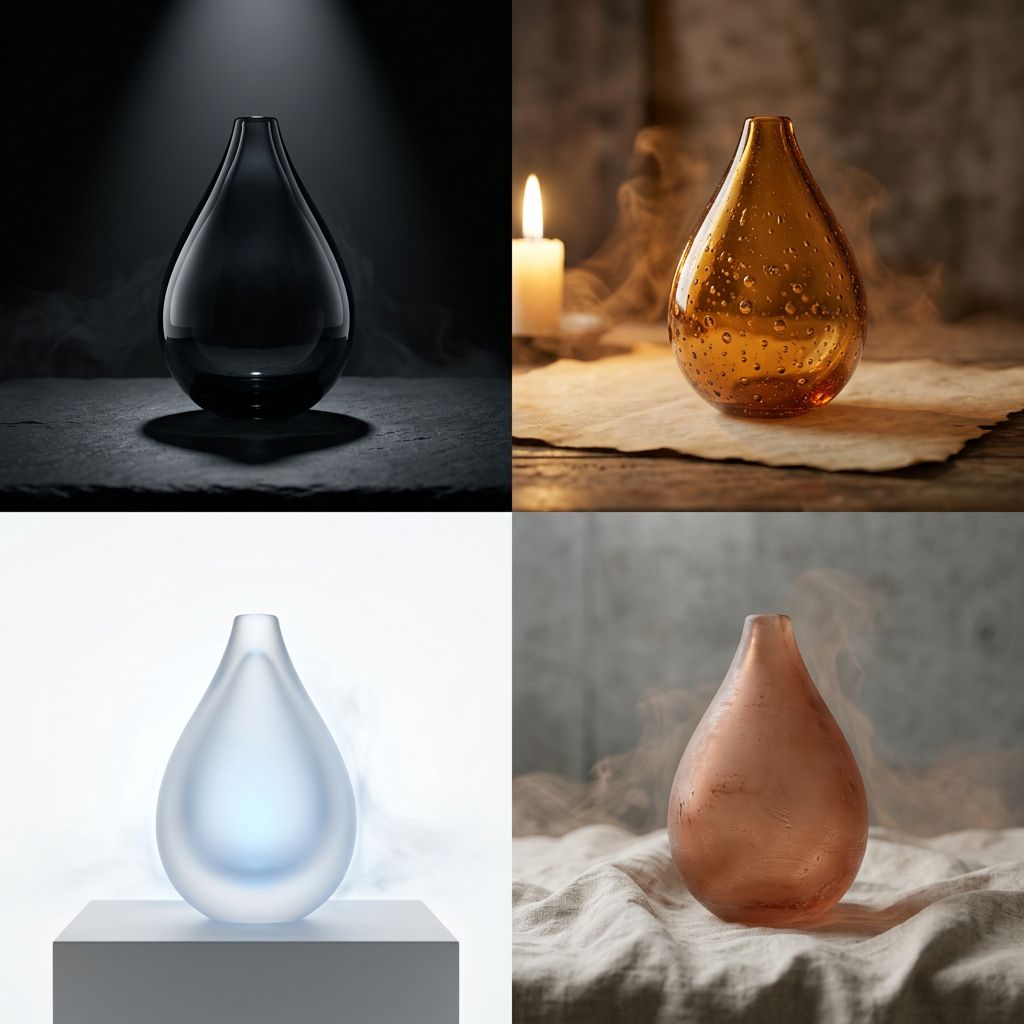
GPT Image 2 prompt library example of a capless perfume bottle product visual

Use this kind of product prompt when the edit depends on preserving shape, material, label clarity, and lighting while testing new backgrounds.

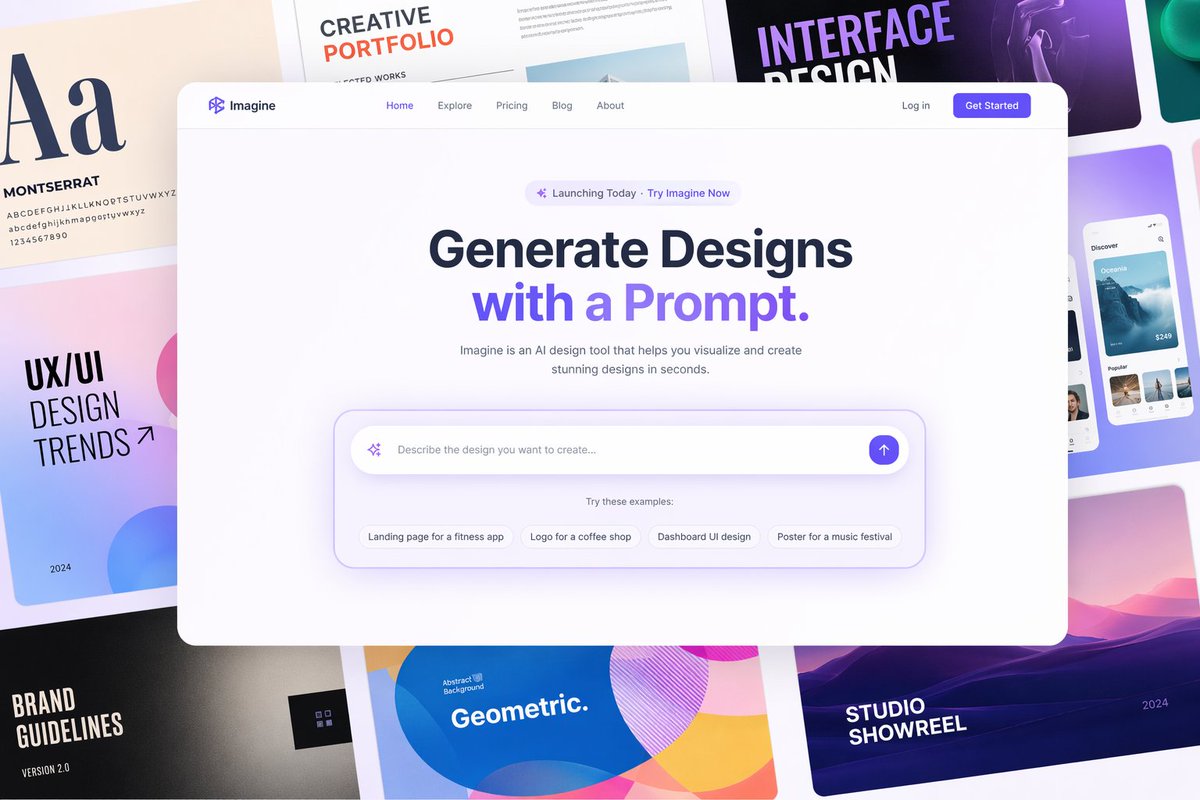
GPT Image 2 prompt library example of modern SaaS homepage design boards

UI-style prompts are useful when you want to clean up layout, preserve hierarchy, and keep interface text readable instead of generating a random abstract screen.

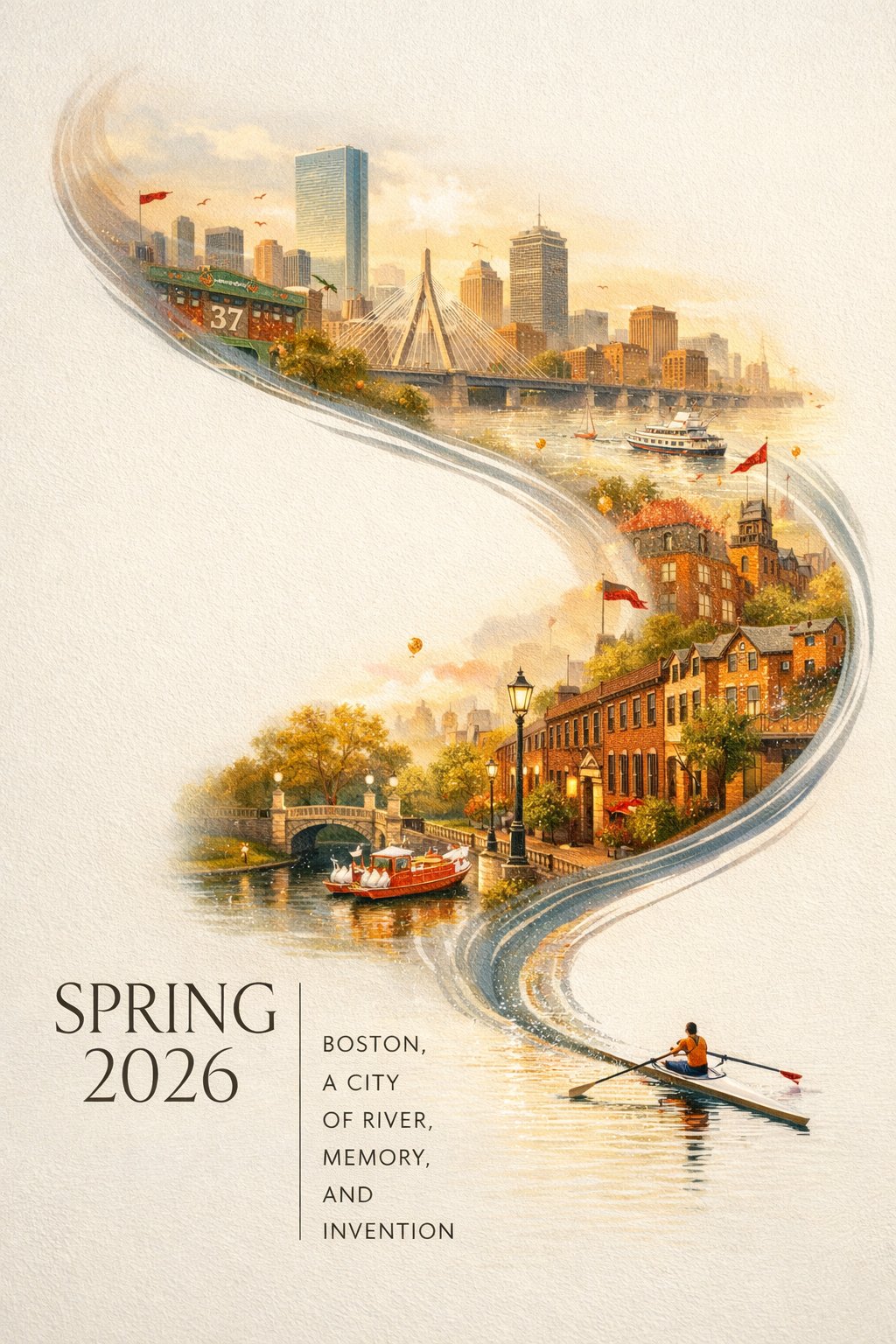
GPT Image 2 prompt library example of a Boston Spring 2026 city poster

Poster examples are good references for campaign variations because they combine composition, typography, negative space, and a clear final-use format.

Prompt examples for common edits

Product background replacement

Edit the uploaded product image into a clean e-commerce hero image.
Preserve the product shape, logo, label text, material, and color.
Replace the background with a soft neutral studio setup, realistic contact shadow, and subtle reflection.
Keep the product centered with enough whitespace around it for a website card.
Do not add extra props, extra text, hands, people, or a second product.

Campaign variation

Create a winter campaign variation from the uploaded summer campaign visual.
Keep the same main subject, brand colors, logo placement, and overall composition.
Change the background to a snowy city evening with warm shop lights and subtle falling snow.
Make the mood seasonal but still premium and realistic.
Do not change the product, do not distort the logo, and do not add unreadable decorative text.

UI-style visual cleanup

Edit the uploaded UI mockup into a cleaner SaaS dashboard hero image.
Preserve the main dashboard layout and the large chart structure.
Improve spacing, contrast, and typography clarity.
Use a realistic browser-window presentation with soft studio lighting.
Keep all visible interface text simple and readable.
Do not invent dense tables, random icons, or extra navigation bars.

Multi-reference product scene

Use reference image 1 as the exact product.
Use reference image 2 for the room style, lighting, and surface material.
Place the product from reference 1 on the table in the environment style of reference 2.
Match the perspective and shadows so the product feels physically present.
Preserve the product label and proportions.
Do not copy unrelated objects from reference image 2.

What to check before downloading

Before you treat an edit as final, check the result like a production asset:

  • Is the original subject still recognizable?
  • Did the model preserve the logo, label, face, outfit, or layout that mattered?
  • Is the text readable enough for the final placement?
  • Does the aspect ratio match where the image will be used?
  • Are shadows, reflections, and perspective believable?
  • Did the model add objects you did not ask for?
  • Is the result clean at the output size you selected?

OpenAI's own guide still lists limitations around text rendering, consistency, and precise composition control. GPT Image 2 is stronger than earlier image models, but you should still review the final output, especially for branded assets.

Start here

If you already have the image you want to improve, open the GPT Image 2 app workspace, upload it, and write the edit around what must be preserved.

If you only have a rough idea, start with the GPT Image 2 prompts page, find a structure close to your use case, then move into the app with GPT Image 2 selected.

The best GPT Image 2 editing workflow is not "make this better." It is: preserve the important parts, change the specific parts, pick the right frame, generate a near-hit, and refine from there.

FAQ

Can I use GPT Image 2 for image editing on GPTIMG2 AI?

Yes. Use the GPTIMG2 AI app, select GPT Image 2, upload your reference image, and describe the edit you want.

How many reference images should I upload?

Use one reference image when you only need to preserve a subject. Use multiple references when each image has a clear role, such as subject, background, style, or layout.

Should I use high quality for every edit?

No. Use lower or medium quality for exploration, then switch to higher quality after the composition and preservation are correct.

What is the biggest mistake in GPT Image 2 editing?

The biggest mistake is only describing the desired change. For editing, you also need to say what must stay unchanged.

Where should I start if I do not have a prompt?

Start from the GPT Image 2 prompts page, copy a useful structure, then open it in the app with GPT Image 2 selected.